Guest journey overview
Updated on 2026-08-17
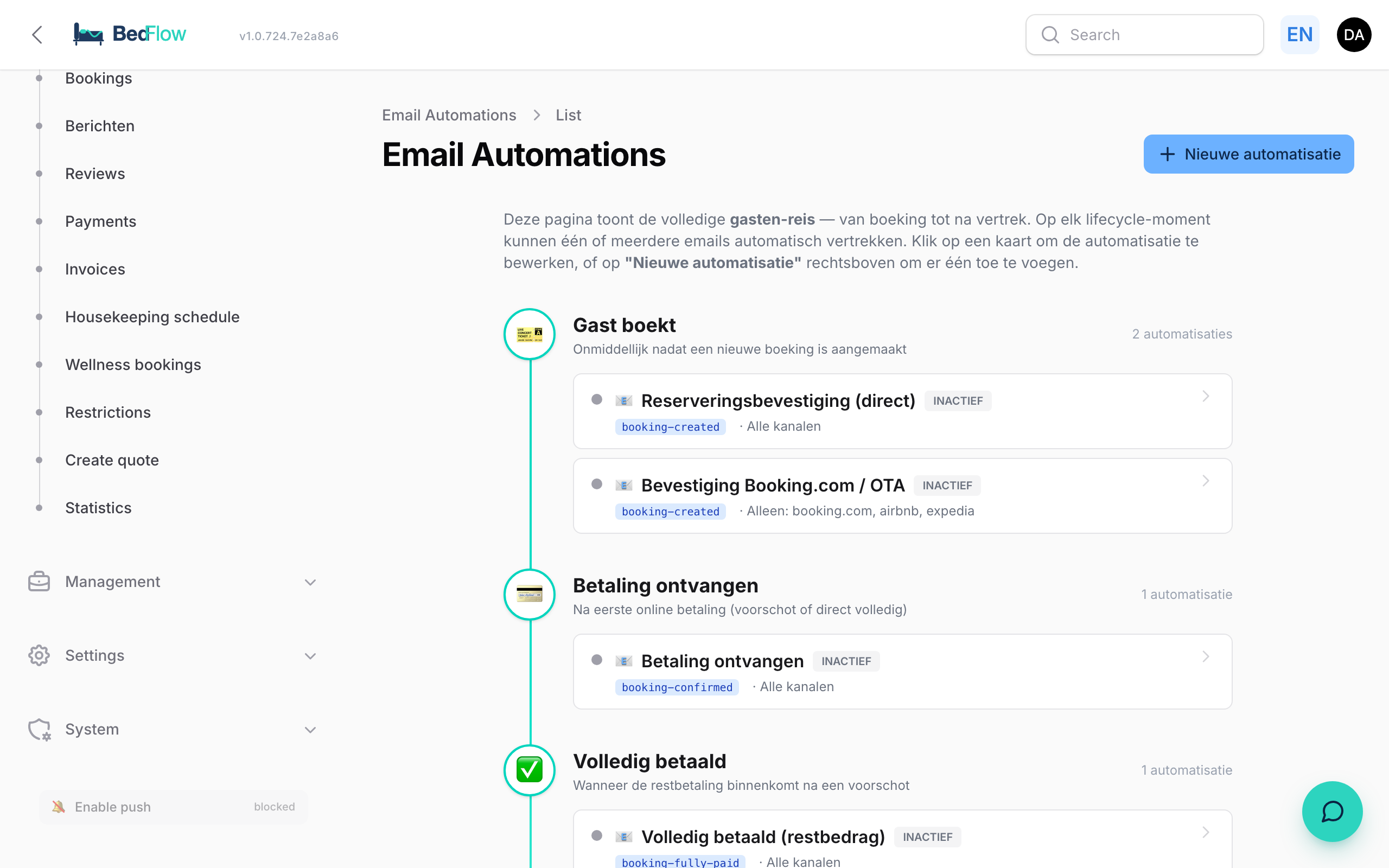
The Manage → Automated messages page no longer shows a dull table but a visual guest journey timeline — from the moment someone books until after departure.
How do you read it?
You see a vertical line with lifecycle stages:
- 🎫 Guest books
- 💳 Payment received (deposit or full straight away)
- ✅ Fully paid (remaining balance)
- 📅 X days before arrival (pre-arrival, payment reminder)
- 🏠 Arrival day
- ⭐ X days after departure (review request)
- ⏱️ Booking expires (not paid)
- ❌ Booking cancelled
Each stage has automations attached as cards:
- 🟢 green dot = active
- ⚫ grey dot = inactive (paused)
- Blue template badge (
booking-confirmed,booking-fully-paid, …) - Channel filter in plain language ("Only: direct, website" or "All except: booking.com, airbnb")
- 🔒 badge if the payment link is hidden (OTA bookings)
Stages without an automation show a grey "No email configured" placeholder — so you immediately see gaps in your flow.
You don't start with an empty schedule: every new environment comes with a default set of seven messages (confirmation direct and via OTA, payment received, payment reminder, pre-arrival, expired booking, cancellation). You can edit, disable or extend them — but from day one your guests get a confirmation.
WhatsApp on the timeline
Next to the e-mail cards, some stages also carry WhatsApp cards. These are built into BedFlow — you don't create them yourself — but you edit their wording under Message templates.
Two of them go out to your guest automatically:
- Pre-arrival, 2 days before arrival at 10:00 — check-in times plus the link to their personal guest page. For every booking, including ones from Cubilis, Hostaway or an OTA connection.
- Arrival-day welcome, at 09:05, right after the 09:00 welcome e-mail. This one follows your welcome mail: if that arrival-day automation is off, no WhatsApp goes out either. That keeps the timeline honest.
Both only go out when your property has a WhatsApp connection and the guest has a mobile number. If a number turns out not to be on WhatsApp, BedFlow remembers that instead of retrying every time — you'll see a warning on the booking. The welcome WhatsApp can also be sent on its own with the button in the room overview.
Adding a new automation
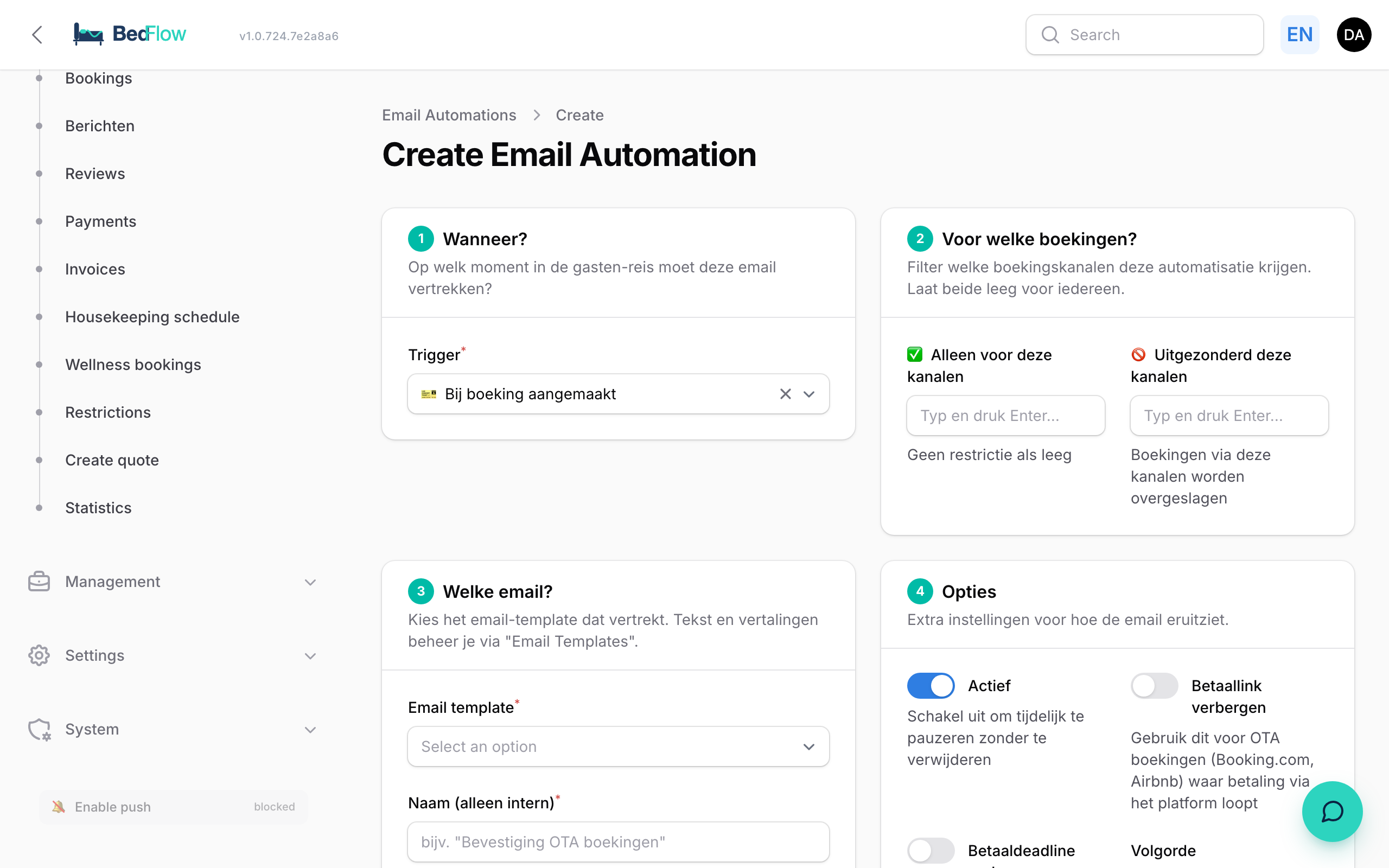
Click New automation at the top right. You enter a 5-step wizard:
- When? — Choose a trigger type (booking_created, payment_received, days_before_arrival, …)
- For which bookings? — Channels include/exclude (leave empty for everyone)
- Which email? — Choose a template from the catalogue
- Options — Active toggle, hide payment link (for OTA), hide payment deadline, order
- Summary — live green card showing in one sentence what is going to happen. Updates as you tweak.
Example summary:
"🎫 On booking created → send Booking Confirmed — only for direct, website (without payment link)"
Active vs inactive
Every rule has an Active toggle. By default rules are inactive when I create them for you — so you can review the content (via Email Templates) before they go live.
No email is sent while the rule is inactive.